We heard you. Getting around the Oolio ecosystem meant a lot of moving in and out of apps just to get to the thing you actually needed. So we've built the new Office. Every experience we offer, at your fingertips, from one place. You can now manage your products and menus easily, across all channels from one place, for simplified menu maintenance.
It's not a reinvention, it's the same Oolio, just organised so you can get to what you need faster.
In this post:
What's actually changing
Right now, logging into the Oolio Portal drops you on a welcome screen with eight app tiles: Pay, POS, Insights, Tags, Orders, Reservations, Loyalty, Feedback. You pick one, and go into that app.
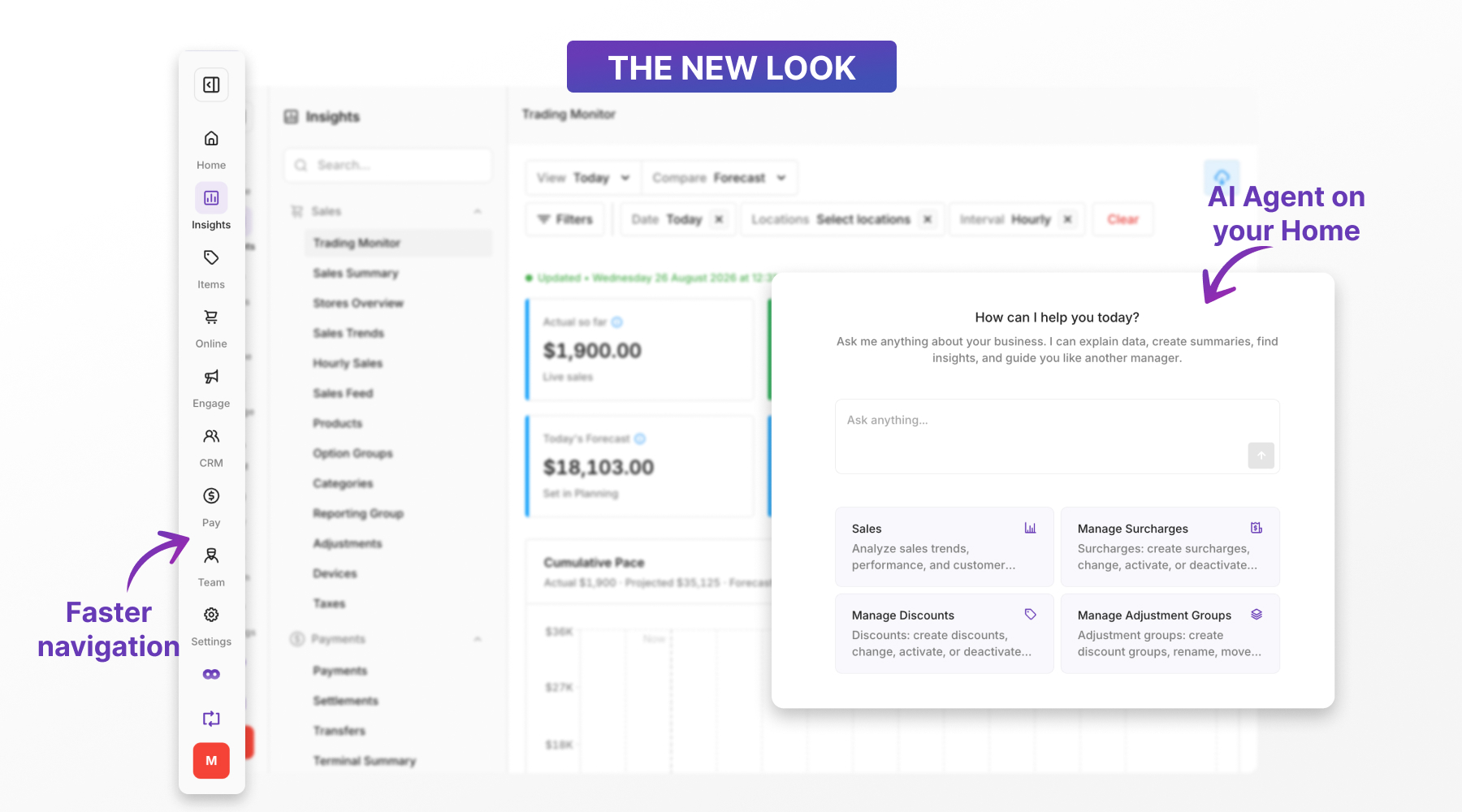
From 31 August, the tiles are gone. You land on Home, and every part of Oolio is a permanent item in the side nav on the left: Home, Items, Pay, Engage, Team, Insights, Admin, Settings, and POS. Nine destinations, always one click away, no matter where you are in the product.
Image: Old vs new, side by side (the eight-tile welcome screen next to the new Home screen with the icon rail)
Each nav item opens a second column with its own search box and a grouped list of everything inside it. So you're never more than: pick the area, search or scan the list, done.
Try it before it's the default
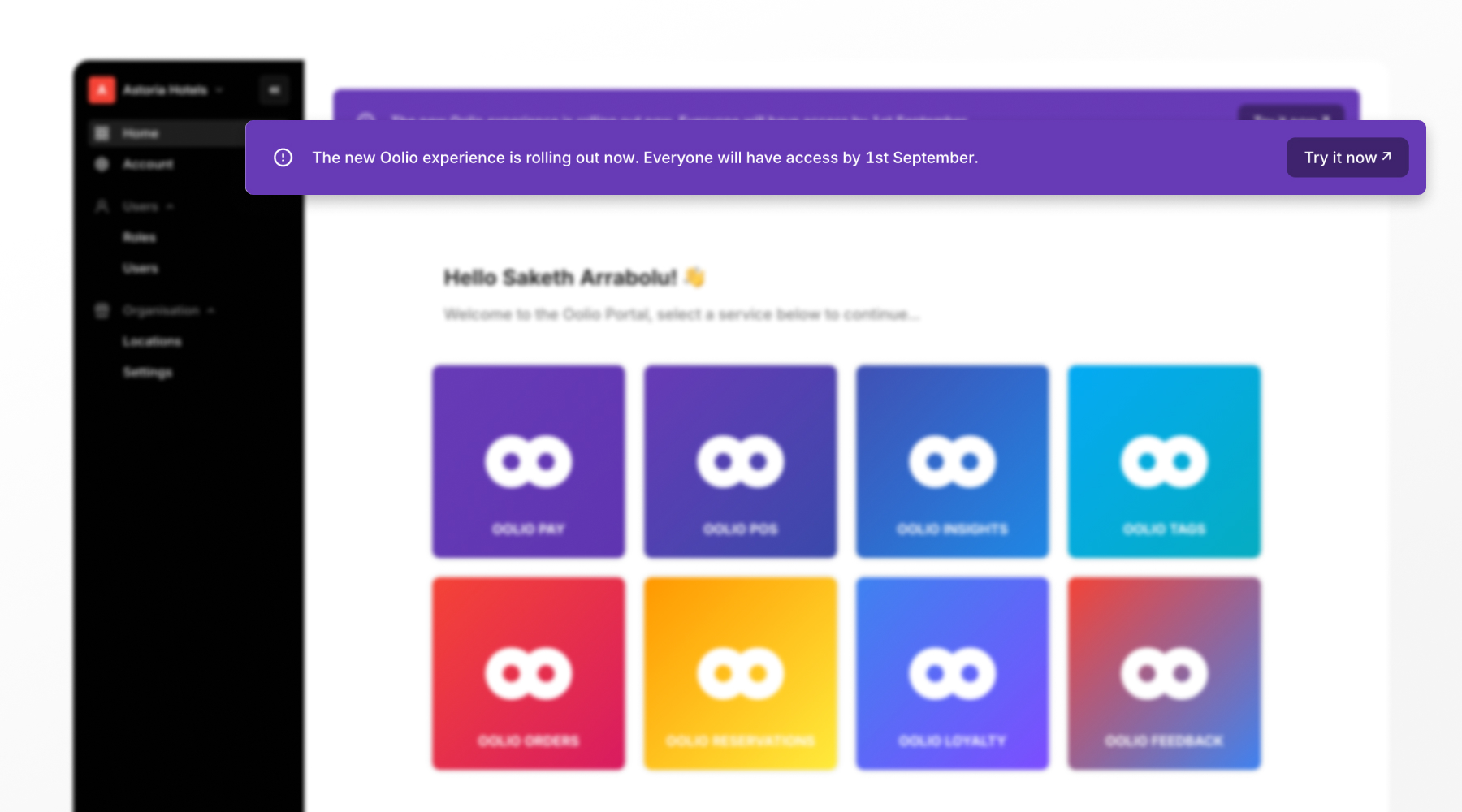
This week, you'll see a "Try it now" button in the top left of your Oolio Portal. It's entirely optional. Click it to explore at your own pace.
Want to check something in your current reports first? Look for the switch icon in the bottom left, just above sign out, labelled Switch to Old Office. You can go back and forth as often as you like.
From Tuesday 1 September, the new look becomes the default for everyone. Nothing you rely on is going away. It'll just be easier to find.
Home: AI Chat Agent
Home isn't just a dashboard of apps now, it's your AI Chat agent.
It can explain data, create summaries, find insights, and guide you like another manager.
That's the whole idea. If you're not sure which report answers your question, or where a setting lives, you don't need to know the structure of the product anymore. You just ask.
It's not only for questions, either. You can use prompts to analyse Sales trends, performance, and customer behaviour. You can also ask your chat agent to create items, set up Surcharges and Discounts.
Your new side navigation
Each icon opens a panel with its own search box and a grouped list of everything inside it.
💡 There's a search box at the top of the list, so you can search anything in your Oolio Office.
POS Pinned to the bottom of the rail. Takes you straight to your POS, with the Office still open behind it.
Questions about the change? Reach out to your account manager, or ask the chat box on Home.